
在hexo博客中使用ECharts图表
AI-摘要
切换
Tianli GPT
AI初始化中...
介绍自己
生成本文简介
推荐相关文章
前往主页
前往tianli博客
简介
ECharts 是一个使用 JavaScript 实现的开源可视化库,涵盖各行业图表,满足各种需求。
ECharts 提供了丰富的图表类型和交互能力,使用户能够通过简单的配置生成各种各样的图表,包括但不限于折线图、柱状图、散点图、饼图、雷达图、地图等。
ECharts 遵循 Apache-2.0 开源协议,免费商用。
ECharts 兼容当前绝大部分浏览器*(IE8/9/10/11,Chrome,Firefox,Safari等)*及兼容多种设备,可随时随地任性展示。
在hexo博客中使用ECharts
- 安装ECharts插件
npm install hexo-tag-echarts --save
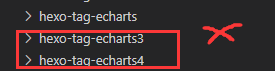
- 安装后会多出echarts3和echarts4插件,在blog插件目录(/node_modules)里删除这俩,三个都装会有冲突。
- 在需要ECharts的文章引入一次ECharts.js,复制粘贴到文章Markdown里就行,建议本地引入,CDN老是抽风 JS文件下载地址。
<script src="https://cdn.jsdelivr.net/npm/echarts@5.5.1/dist/echarts.min.js"></script>
- 之后在文章内使用 ECharts 的 Tag 就可以了。
{% echarts 400 '90%' %}

{% endecharts %}
其中echarts是标签名endecharts是结束标签,400是图表容器的高度,默认是按正常比例缩放的,'90%' 是图表容器的相对宽度,默认是81%。在标签之间的部分是ECharts中option里的内容,具体配置可以参考ECharts配置文档
举例
- 折线图
直接复制官方示例的代码到标签中https://echarts.apache.org/examples/zh/editor.html?c=line-simple
{% echarts 400 '100%' %}
{
  xAxis: {
    type: 'category',
    data: ['Mon', 'Tue', 'Wed', 'Thu', 'Fri', 'Sat', 'Sun']
  },
  yAxis: {
    type: 'value'
  },
  series: [
    {
      data: [150, 230, 224, 218, 135, 147, 260],
      type: 'line'
    }
  ]
};
{% endecharts %}
{
xAxis: {
type: 'category',
data: ['Mon', 'Tue', 'Wed', 'Thu', 'Fri', 'Sat', 'Sun']
},
yAxis: {
type: 'value'
},
series: [
{
data: [150, 230, 224, 218, 135, 147, 260],
type: 'line'
}
]
}
- 极坐标柱状图
直接复制官方示例的代码到标签中https://echarts.apache.org/examples/zh/editor.html?c=polar-endAngle
{% echarts 400 '100%' %}
{
  tooltip: {},
  angleAxis: [
    {
      type: 'category',
      polarIndex: 0,
      startAngle: 90,
      endAngle: 0,
      data: ['S1', 'S2', 'S3']
    },
    {
      type: 'category',
      polarIndex: 1,
      startAngle: -90,
      endAngle: -180,
      data: ['T1', 'T2', 'T3']
    }
  ],
  radiusAxis: [{ polarIndex: 0 }, { polarIndex: 1 }],
  polar: [{}, {}],
  series: [
    {
      type: 'bar',
      polarIndex: 0,
      data: [1, 2, 3],
      coordinateSystem: 'polar'
    },
    {
      type: 'bar',
      polarIndex: 1,
      data: [1, 2, 3],
      coordinateSystem: 'polar'
    }
  ]
};
{% endecharts %}
{
tooltip: {},
angleAxis: [
{
type: 'category',
polarIndex: 0,
startAngle: 90,
endAngle: 0,
data: ['S1', 'S2', 'S3']
},
{
type: 'category',
polarIndex: 1,
startAngle: -90,
endAngle: -180,
data: ['T1', 'T2', 'T3']
}
],
radiusAxis: [{ polarIndex: 0 }, { polarIndex: 1 }],
polar: [{}, {}],
series: [
{
type: 'bar',
polarIndex: 0,
data: [1, 2, 3],
coordinateSystem: 'polar'
},
{
type: 'bar',
polarIndex: 1,
data: [1, 2, 3],
coordinateSystem: 'polar'
}
]
}
加載主題
- 在文章中引入主题JS文件,比如我的在本地就写作。
<script src="/img/Games/dwrg/macarons.js"></script>
主题文件在ECharts官方页面制作下载
2. 修改插件
You Blog: \node_modules\hexo-tag-echarts\echarts-template.html
修改html文件为
<div id="<%- id %>" style="width: <%- width %>;height: <%- height %>px;margin: 0 auto"></div>
<script type="text/javascript">
        // 基于准备好的dom,初始化echarts实例
        var myChart = echarts.init(document.getElementById('<%- id %>'), '<%- theme %>' );

        // 指定图表的配置项和数据
        var option = <%= option %>

        // 使用刚指定的配置项和数据显示图表。
        myChart.setOption(option);
</script>
You Blog: \node_modules\hexo-tag-echarts\index.js
var fs = require('fs'),
  path = require('path'),
  _ = require('underscore');
var filePath = path.join(__dirname, 'echarts-template.html');
function echartsMaps(args, content) {
  var template = fs.readFileSync(filePath).toString(),
    options = {};
  if (content.length) {
    var options = content;
  }
  // Output into
  return _.template(template)({
    id: 'echarts' + ((Math.random() * 9999) | 0),
    option: options,
    height: args[0] || 400,
    width: args[1] || '81%',
    theme: args[2] || 'light'
  });
}
hexo.extend.tag.register('echarts', echartsMaps, {
  async: true,
  ends: true
});
3. 之后echarts标签就会多出一项主题项,默认有light和dark两种模式
由于我引入了新的主题**macarons.js**标签可以这样写。
{% note danger no-icon %}{% span red, 记得重新渲染Blog %}{% endnote %}
```Markdown
{% echarts 400 '100%' macarons %}
{
  legend: {},
  tooltip: {},
  dataset: {
    source: [
      ['product', '2012', '2013', '2014', '2015'],
      ['Matcha Latte', 41.1, 30.4, 65.1, 53.3],
      ['Milk Tea', 86.5, 92.1, 85.7, 83.1],
      ['Cheese Cocoa', 24.1, 67.2, 79.5, 86.4]
    ]
  },
  xAxis: [
    { type: 'category', gridIndex: 0 },
    { type: 'category', gridIndex: 1 }
  ],
  yAxis: [{ gridIndex: 0 }, { gridIndex: 1 }],
  grid: [{ bottom: '55%' }, { top: '55%' }],
  series: [
    // These series are in the first grid.
    { type: 'bar', seriesLayoutBy: 'row' },
    { type: 'bar', seriesLayoutBy: 'row' },
    { type: 'bar', seriesLayoutBy: 'row' },
    // These series are in the second grid.
    { type: 'bar', xAxisIndex: 1, yAxisIndex: 1 },
    { type: 'bar', xAxisIndex: 1, yAxisIndex: 1 },
    { type: 'bar', xAxisIndex: 1, yAxisIndex: 1 },
    { type: 'bar', xAxisIndex: 1, yAxisIndex: 1 }
  ]
};
{% endecharts %}
暗色主题:
{% echarts 400 '100%' dark %}
{
  xAxis: {
    type: 'category',
    data: ['Mon', 'Tue', 'Wed', 'Thu', 'Fri', 'Sat', 'Sun']
  },
  yAxis: {
    type: 'value'
  },
  series: [
    {
      data: [150, 230, 224, 218, 135, 147, 260],
      type: 'line'
    }
  ]
};
{% endecharts %}
结语
自己用这插件时也是踩了不少坑,毕竟我不是程序员出生不咋懂,希望能帮助到有需要的人。
更多的图表内容可以参考ECharts的官方示例
- 感谢你赐予我前进的力量
-
 微信
微信  支付宝
支付宝
赞赏者名单
因为你们的支持让我意识到写文章的价值🙏
本文是原创文章,采用 CC BY-NC-ND 4.0 协议,完整转载请注明来自 Dio云玩家

评论
隐私政策
你无需删除空行,直接评论以获取最佳展示效果